
38 min read
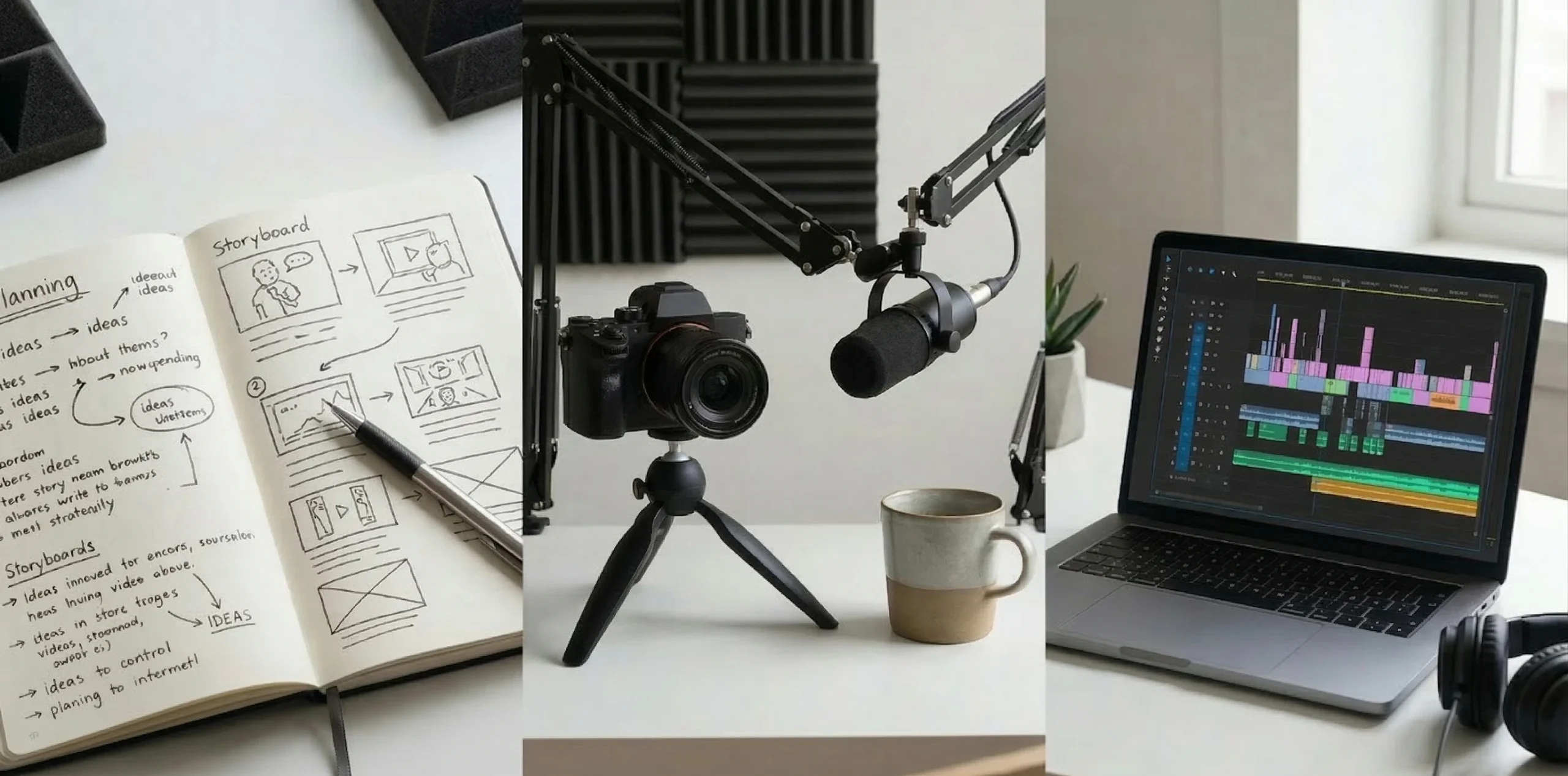
YouTube production rarely happens inside a single app. A finished video usually passes through several stages — planning ideas, recording footage, editing scenes, improving audio, designing thumbnails, and preparing the final upload.
Because of this layered process, most creators rely on a small ecosystem of tools rather than one all-in-one platform. Some tools help structure ideas and scripts, others handle recording and editing, while others focus on design, subtitles, or workflow efficiency.
This guide brings together many of the tools YouTubers commonly use across the entire production pipeline — from early planning to final publishing. Instead of focusing on a single category of software, the goal is to show how different tools fit into the broader workflow behind a finished video.
For creators building their setup or refining their process, understanding this workflow often matters more than choosing a single “best” tool.
Who This Guide Is For
Different YouTube channels operate in very different ways. A gaming channel, a documentary channel, and an educational tutorial channel may all publish videos on the same platform, yet their production workflows can look completely different.
For this reason, the tools presented in this guide are not limited to a single style of content. Instead, they reflect several types of creators who commonly appear across the platform.
New YouTubers
Creators starting their first channel often face an unexpected challenge: the overwhelming number of available tools. Searching for “YouTube editing software” or “tools for YouTubers” quickly reveals hundreds of options.
At this stage, the real problem is not the lack of software but choosing a small set of tools that cover the essential stages of production. Planning, recording, editing, and thumbnail design are usually enough to start publishing consistently. A simple and manageable workflow often leads to faster learning than trying to adopt complex professional setups immediately.
Educational Creators
Channels focused on tutorials, demonstrations, software explanations, or online teaching tend to rely heavily on screen recording and editing tools. For these creators, clarity is more important than cinematic editing.
Screen capture quality, readable visuals, and clean audio often determine whether the viewer can actually follow the explanation. As a result, educational creators usually prioritize reliable recording tools and straightforward editing environments rather than advanced visual effects.
Faceless or Voice-Over Channels
Documentary-style videos, commentary channels, and narrated explainers often operate without showing the creator on camera. These channels rely more heavily on voice recording, screen capture, stock visuals, and editing tools that help structure a narrative.
In this workflow, the microphone, the editing timeline, and the script often become more important than camera setups or studio lighting.
Intermediate Creators Improving Workflow
Many creators reach a stage where they are already publishing regularly but start noticing inefficiencies in their production process. Editing takes longer than expected, recordings require too many retakes, or organizing ideas becomes difficult.
At this point, experimenting with different tools can significantly improve workflow efficiency. Sometimes replacing a single piece of software can reduce production time or simplify the overall process.
How the YouTube Creation Process Works
While every creator eventually develops a slightly different workflow, most YouTube videos still pass through a surprisingly similar production pipeline.
Even large channels with professional teams follow variations of the same sequence that smaller creators use.
A typical production process often includes the following stages:
• Developing the initial idea
• Organizing the concept into a script or outline
• Recording footage, screen capture, or voice narration
• Editing and structuring the narrative
• Cleaning and improving audio quality
• Designing thumbnails and visual elements
• Adding subtitles and accessibility features
• Exporting and publishing the final video
The exact tools used at each stage may vary widely. Some creators prefer all-in-one environments that combine several functions in a single platform. Others prefer specialized tools designed for a specific step of the process.
For example, a creator may write scripts in Notion, record the screen using OBS Studio, edit the video in DaVinci Resolve, clean audio in Audacity, and design thumbnails in Canva. None of these tools performs every task, but together they create a complete production workflow.
The tools presented in this guide are grouped according to the stage where they most commonly appear in this pipeline. This makes it easier to understand not only what each tool does, but also where it typically fits within the broader production process.
Quick Tool Picks by Need
For readers who want a quick overview before exploring the full list, it can be helpful to look at typical combinations used by many YouTube creators.
Different types of channels often gravitate toward slightly different workflows depending on their production priorities.
Beginner-Friendly Workflow
Planning: Notion
Recording: OBS Studio
Editing: CapCut or DaVinci Resolve
Thumbnail design: Canva
This combination is frequently used by new creators because it balances accessibility with capability. Each tool has a relatively manageable learning curve, yet together they cover most of the essential stages of video production.
A creator using this setup can plan ideas, record content, edit footage, and design thumbnails without needing advanced technical knowledge.
Professional Editing Workflow
Planning: Notion or Trello
Recording: OBS Studio or Riverside
Editing: Adobe Premiere Pro or Final Cut Pro
Audio: Adobe Audition
Creators producing longer videos, documentaries, or highly polished tutorials often rely on more specialized editing environments.
Professional editing platforms provide deeper control over color grading, effects, and complex timelines. Dedicated audio tools also become important when voice clarity and sound design play a significant role in the final video.
Fast Production Workflow
Planning: Trello
Recording: Loom
Editing: CapCut
Thumbnail: Canva
Some YouTube channels prioritize speed rather than complex editing. Creators producing frequent uploads, commentary videos, or short-form content often prefer tools that allow quick capture and editing.
This type of workflow focuses on efficiency and simplicity rather than advanced visual features.
Remote Interview or Podcast Workflow
Recording: Riverside
Editing: Adobe Premiere Pro or DaVinci Resolve
Audio: Adobe Audition
Channels centered around conversations, interviews, or remote guests require tools that can reliably record multiple participants over the internet.
Platforms such as Riverside are specifically designed for this situation. By recording video and audio locally before uploading the files, they help preserve quality even if internet connections fluctuate during the conversation.
What Tools Do YouTubers Use to Create Videos?
Creating a YouTube video involves multiple stages that extend far beyond simply pressing the record button. Planning, recording, editing, sound processing, visual design, and publishing preparation all contribute to the final result.
Because of this multi-step process, creators rarely rely on a single application. Instead, they combine different tools that support specific stages of the production pipeline.
The following overview summarizes how different tools typically fit into the workflow.
| Stage | Useful Tools |
|---|---|
| Content Planning | Notion, Trello |
| Recording | OBS Studio, Camtasia, Loom |
| Remote Recording | Riverside |
| Video Editing | DaVinci Resolve, Premiere Pro, Final Cut Pro, CapCut |
| Audio Editing | Audacity, Adobe Audition, Descript |
| Thumbnail Design | Canva, Adobe Express, Figma |
| Subtitles | Kapwing, VEED |
| AI Tools | ElevenLabs, Runway |
Each category reflects a different part of the production process. Some creators may use only a few of these tools, while others combine several depending on the complexity of their videos.
Understanding how these tools interact is often more useful than focusing on a single application. Over time, creators gradually refine their workflow, replacing tools that no longer fit their needs and discovering new ones that simplify production.
YouTube Content Creation Workflow Tools
Creating a YouTube video rarely depends on a single piece of software. Most creators move through a chain of stages that gradually shape raw material into a finished video. What begins as a simple idea eventually turns into a script, recorded footage, edited visuals, refined sound, and a final package prepared for publishing.
Because each stage requires a different type of task, creators often rely on multiple tools rather than one all-in-one solution. A planning tool may help organize ideas and scripts, a recording tool captures video or screen activity, editing software structures the narrative, audio tools improve clarity, and design platforms prepare thumbnails or visual assets.
Over time, experienced creators tend to build a workflow that reflects the kind of content they produce. A gaming channel may depend heavily on screen recording and editing software, while a commentary channel might rely more on audio tools and script organization. Educational creators often combine screen capture tools with annotation-friendly editing environments.
The tools presented below reflect the stages where they most commonly appear in this workflow. Some tools focus on planning and organization, others on recording, editing, sound design, or visual production. Understanding how these categories interact can make the entire production process easier to manage, especially for creators who are still refining their own workflow.
Rather than viewing these tools as isolated applications, it is often more useful to see them as parts of a production system. When the right tools are combined, they create a smoother path from the first idea to the final uploaded video.
Content Planning and Workflow Tools
Before any recording or editing takes place, most YouTube videos begin with a much simpler step: organizing the idea.
Creators who publish consistently usually develop systems for collecting video concepts, writing scripts, tracking production stages, and scheduling uploads. Without some form of planning, the production process can quickly become chaotic, especially when multiple videos are in progress at the same time.
Planning tools help bring structure to this early stage. They allow creators to capture ideas before they disappear, organize research materials, outline scripts, and keep track of which videos are still in development and which ones are ready to publish.
Two tools appear frequently in this part of the workflow: Notion and Trello. Although both can help organize content production, they approach the problem from slightly different angles.

Notion
Notion is widely used by YouTubers as a centralized workspace for organizing ideas, scripts, research notes, and long-term content planning. Rather than functioning as a single-purpose application, it acts more like a flexible digital notebook combined with a database system.
For many creators, the most valuable aspect of Notion is its ability to hold an entire content strategy in one place. Video ideas, script drafts, publishing calendars, research links, and even thumbnail concepts can all live within the same workspace. Instead of jumping between different apps, creators can maintain a clear overview of their upcoming content.
One reason Notion works well for YouTube planning is its database structure. A creator can build a table of video ideas and attach status tags such as “idea,” “research,” “recording,” or “editing.” Over time this evolves into a personal production dashboard where it becomes easy to see which videos are ready to move forward and which ones still need work.
This flexibility, however, is also what makes Notion slightly intimidating for new users. The platform does not force a predefined structure. Instead, creators design their own workspace, which can require some experimentation at the beginning.
Compared with more visual planning tools like Trello, Notion tends to be stronger for documentation and script development. Creators who write detailed outlines, research-heavy scripts, or long-form video essays often find that Notion fits naturally into their workflow.
For channels aiming to build a long-term content system rather than simply managing individual videos, Notion often becomes the foundation of the entire planning process.
Trello
Trello approaches content organization from a different perspective. Instead of functioning as a flexible documentation workspace, it focuses on visual task management through a system of boards, lists, and cards.
This structure makes Trello particularly effective for tracking the progress of multiple videos at the same time. A typical YouTube production board might include columns labeled “Ideas,” “Script,” “Recording,” “Editing,” and “Published.” Each video becomes a card that moves from one stage to the next as production progresses.
For creators who prefer visual organization rather than detailed documentation, this workflow can feel immediately intuitive. Instead of searching through notes or databases, the entire production pipeline becomes visible at a glance.
One of Trello’s strengths is its simplicity. A creator can start organizing a workflow within minutes without designing complex structures. Cards can also include checklists, links, attachments, and comments, making it possible to coordinate tasks even when several people are involved in the production process.
The trade-off is that Trello is not designed for long-form writing or research organization. Scripts, detailed notes, or extensive planning documents often work better in tools like Notion.
Because of this difference, many creators end up using both tools together. Notion becomes the place where ideas, scripts, and research live, while Trello acts as a visual production tracker that shows which stage each video has reached.
For creators managing multiple uploads per week or coordinating small production teams, Trello provides a clear and practical overview of the entire content pipeline.
Screen Recording and Video Capture Tools
Recording is the stage where an idea finally turns into raw material. Until this moment, everything in the production process remains conceptual — notes, outlines, and plans. Once recording begins, the project moves from planning into actual content creation.
The type of recording tool a creator chooses often depends on the style of their channel. A gaming creator may need software capable of capturing multiple video sources simultaneously. An educational creator might prioritize screen clarity and annotation features. Interview-based channels require stable recording environments that can handle multiple participants.
Some tools focus on flexibility and advanced configuration, allowing creators to control every element of the recording environment. Others prioritize speed and simplicity, enabling quick recordings that can be shared immediately.
The following tools represent several different approaches to video capture. Each serves a slightly different purpose in the YouTube production workflow, and the best choice often depends on the type of content being produced rather than the tool’s popularity alone.
OBS Studio
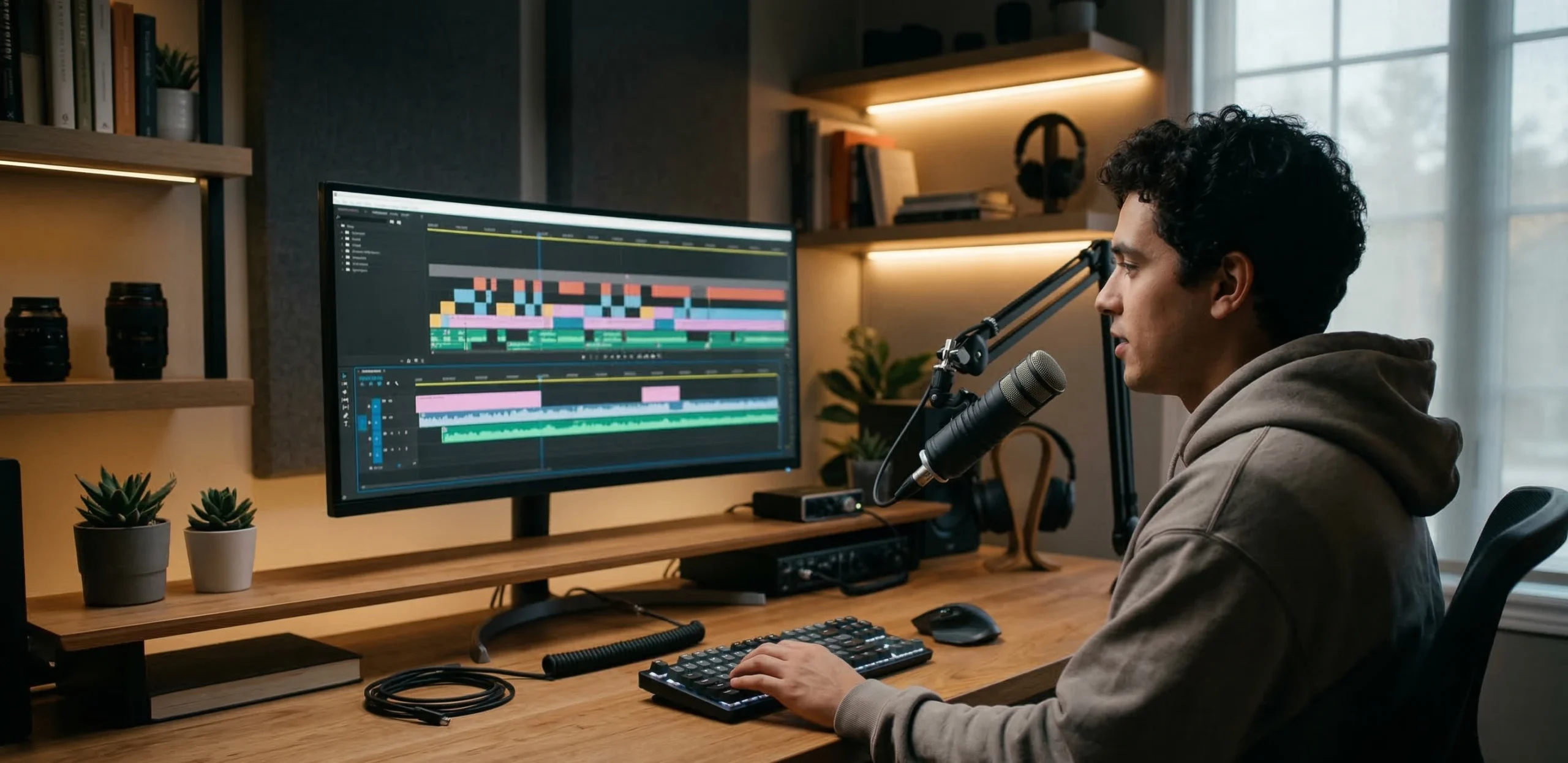
OBS Studio has become one of the most widely recognized recording tools in the YouTube ecosystem, particularly among gaming creators, livestreamers, and tutorial channels. Its strength lies in the level of control it offers over recording environments.
Unlike simpler screen capture tools, OBS allows creators to combine multiple sources within a single recording scene. A screen capture, webcam feed, microphone input, and overlay graphics can all be layered together and recorded simultaneously. For creators who produce gameplay content, reaction videos, or tutorial demonstrations, this flexibility becomes extremely valuable.
Another reason OBS remains so popular is that it is completely free and open source. This makes it accessible to beginners while still being powerful enough for experienced creators who want a customizable recording environment. Many professional streamers and YouTubers continue to rely on OBS even after their channels grow.
The trade-off is complexity. OBS does not hide its technical nature, and new users often find the interface overwhelming at first. Scene configuration, audio routing, and encoding settings may require some experimentation before the software feels intuitive.
Compared with tools like Camtasia or Loom, OBS prioritizes flexibility over simplicity. It does not include built-in editing features, but as a recording platform it remains one of the most capable solutions available.
For creators who want full control over how video and audio sources are captured, OBS often becomes the foundation of their recording workflow.
Camtasia
Camtasia approaches screen recording from a different direction. Instead of focusing on advanced configuration and streaming capabilities, it was designed primarily for educational content creation.
Many tutorial channels, online course creators, and software educators rely on Camtasia because it combines recording and editing inside the same environment. A creator can capture the screen, immediately move into the editing timeline, and begin refining the video without switching software.
One of Camtasia’s defining features is its built-in annotation system. Arrows, highlights, zoom effects, and callout boxes can be added quickly, making it easier to direct the viewer’s attention to specific parts of the screen. For instructional videos where clarity is essential, these tools can significantly improve the viewer’s ability to follow the explanation.
Another advantage is accessibility. The interface is designed to feel approachable even for users who have never worked with traditional editing software. Recording settings are relatively straightforward, and basic editing operations such as cutting clips or inserting annotations can be learned quickly.
However, this simplicity also introduces limitations. Compared with OBS, Camtasia offers fewer options for complex recording setups. It also lacks the deep editing flexibility found in professional video editing software.
Camtasia operates under a paid license model, which can be a deciding factor for creators working with a limited budget.
For educational creators who value clarity, annotation tools, and a streamlined workflow, Camtasia provides a focused environment that prioritizes teaching over technical complexity.
Loom
Loom occupies a different space within the recording ecosystem. Instead of targeting full YouTube productions, it focuses on fast screen recordings designed to be created and shared with minimal friction.
The appeal of Loom lies in how quickly a recording can be produced. A creator can open the application, start recording within seconds, and generate a shareable link almost immediately after finishing the video. This makes it particularly useful for explanation videos, quick walkthroughs, or demonstration clips.
For some YouTube channels — especially those producing short tutorials, commentary clips, or software demonstrations — this speed can be more valuable than advanced editing capabilities. When the goal is to communicate an idea quickly rather than build a heavily edited video, Loom’s simplicity becomes an advantage.
However, Loom is not designed to replace professional recording or editing tools. It offers limited control over recording settings and is not intended for complex multi-source video setups. Creators producing cinematic content or heavily edited videos will usually rely on more advanced software.
Loom works best as a lightweight recording solution rather than a full production environment. It is particularly useful for creators who produce quick educational content, internal training videos, or short explanatory clips that need to be recorded and shared without delay.
In workflows where speed matters more than customization, Loom can dramatically simplify the recording stage.
Riverside
Riverside was built specifically for creators who produce interviews, podcasts, and remote conversations. Recording multiple participants over the internet introduces challenges that traditional screen recording tools are not designed to handle.
One of the most common problems in remote recording is unstable internet connections. When video calls are recorded directly through conferencing platforms, the recording quality often reflects the connection quality at that moment.
Riverside addresses this issue through local recording. Each participant’s audio and video are captured directly on their own device and uploaded afterward. This means the final recording maintains high quality even if the live call experiences connection fluctuations.
For interview-based YouTube channels, this approach can make a significant difference. Guest conversations, podcast discussions, and collaborative recordings often benefit from the stability and clarity that Riverside provides.
Another advantage is its browser-based workflow. Guests can join recording sessions through a simple link without needing to install complex software. This lowers the technical barrier for remote participants.
The main drawback is cost. Riverside operates as a paid platform, and while it offers free tiers, full functionality typically requires a subscription.
Compared with tools like OBS, which are designed for local recording environments, Riverside specializes in remote collaboration. For creators who frequently host guests or produce conversation-driven content, it has become one of the most reliable recording solutions available.
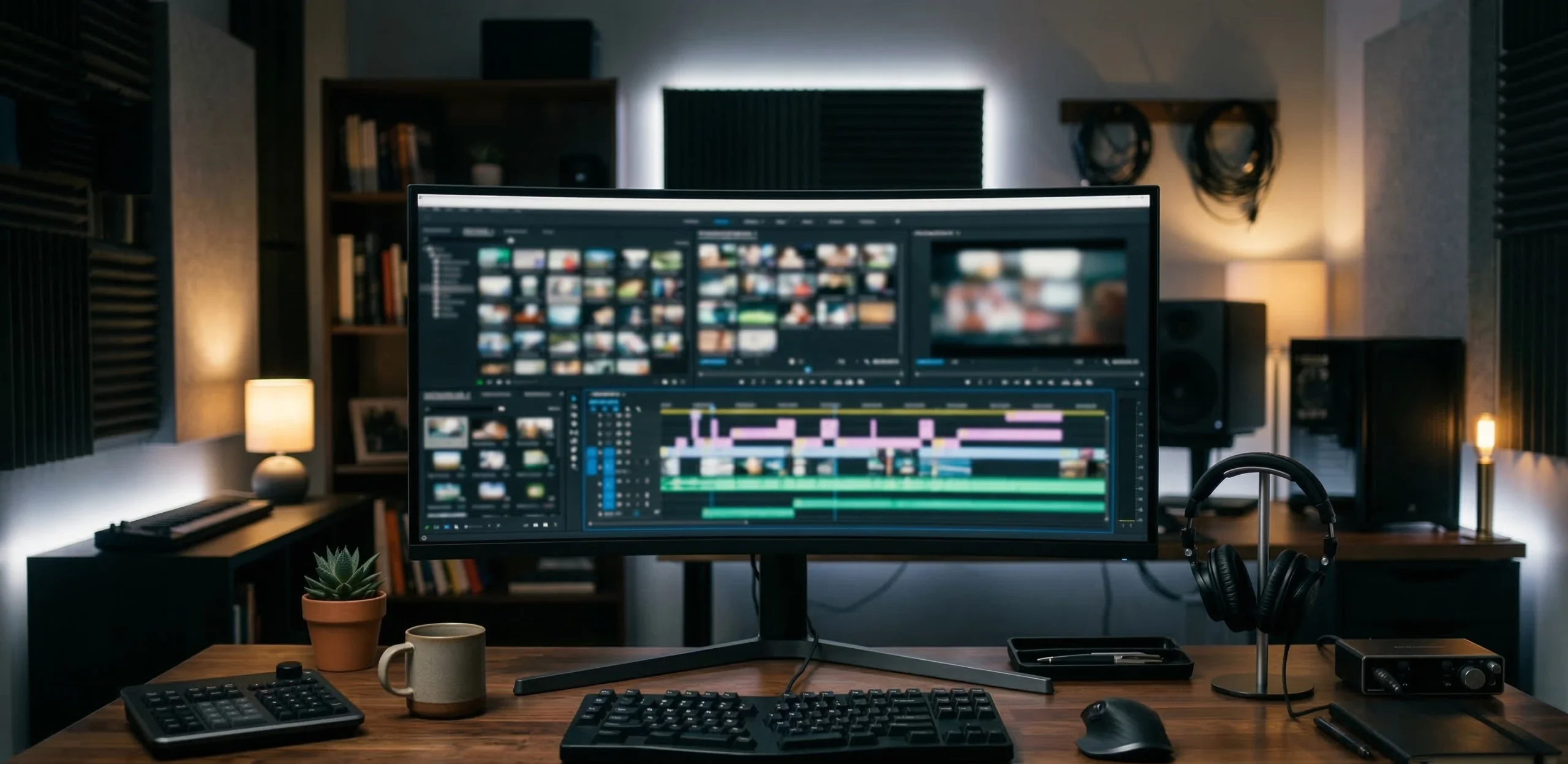
Video Editing Tools
Once recording is finished, the raw material enters the stage where most of the storytelling actually happens: editing.
Editing is where scattered clips become a structured narrative. Footage is trimmed, mistakes are removed, pacing is adjusted, sound is balanced, and visual elements are combined into a coherent video. Even relatively simple YouTube videos often rely heavily on editing to keep the viewer engaged.
Different editing tools support different production styles. Some focus on professional-level control over color grading and visual effects, while others prioritize speed and accessibility for creators who need to publish frequently. The editing environment a creator chooses often reflects the type of content they produce.
Long-form documentary creators, cinematic storytellers, and channels producing highly polished visuals usually rely on advanced editing platforms. Meanwhile, creators focusing on short-form videos or rapid uploads may prefer lightweight editors that allow faster turnaround.
The tools below represent several of the most widely used editing environments across the YouTube ecosystem. Each one offers a slightly different balance between power, flexibility, and ease of use.
DaVinci Resolve
DaVinci Resolve has developed a strong reputation as one of the most capable video editing platforms available, especially for creators who want professional-level tools without the cost associated with many commercial editing programs.
Originally developed as a color grading system used in film production, Resolve gradually evolved into a full editing environment. Today it combines several production stages within one software platform, including editing, color correction, audio post-production, and visual effects.
One reason many YouTubers gravitate toward Resolve is the strength of its free version. Unlike many editing tools that restrict key features behind paid subscriptions, Resolve offers an extensive set of professional editing capabilities without requiring payment. For creators building a channel on a limited budget, this can be extremely valuable.
Resolve is particularly respected for its color grading tools. Channels that emphasize cinematic visuals, travel content, or documentary storytelling often rely on these features to create a consistent visual style.
However, the depth of the software also introduces complexity. New users may initially find the interface overwhelming, and mastering the different editing pages can take time. Compared with simpler editors like CapCut, Resolve requires a stronger learning commitment.
For creators willing to invest time into learning the platform, DaVinci Resolve can function as a complete post-production environment capable of handling everything from basic YouTube edits to complex professional video projects.
Adobe Premiere Pro
Adobe Premiere Pro remains one of the most widely used video editing platforms in professional media production, and its influence extends strongly into the YouTube creator ecosystem as well.
One of Premiere’s main strengths is its integration within the broader Adobe ecosystem. When used alongside applications such as After Effects, Photoshop, and Adobe Audition, the software becomes part of a much larger production environment. Motion graphics, advanced audio editing, and visual compositing can all connect directly with the editing timeline.
For YouTubers producing visually complex content — including documentaries, educational channels with animated graphics, or high-production commentary videos — this integration can significantly expand creative possibilities.
Premiere’s timeline editing system also offers a high degree of flexibility. Multiple video layers, advanced effects, and plugin support allow creators to build sophisticated edits without leaving the platform. This adaptability has made Premiere a long-standing industry standard in many production studios.
The main drawback is its subscription model. Unlike DaVinci Resolve’s free tier, Premiere requires ongoing payment, which may discourage creators who are just starting out.
In practice, Premiere Pro is often chosen by creators who expect their editing workflow to expand over time. Its ecosystem connections, plugin support, and professional toolset make it especially attractive for channels that want long-term scalability in their editing environment.
Final Cut Pro
Final Cut Pro occupies a unique place among video editing platforms because it was developed specifically for the macOS ecosystem. For creators who work primarily on Apple devices, the software is often considered one of the fastest and most optimized editing environments available.
One of the defining features of Final Cut Pro is its magnetic timeline. Instead of relying on traditional track-based editing systems, clips automatically adjust and reposition themselves as edits are made. This reduces the risk of gaps or misplaced segments and allows creators to work more fluidly during the editing process.
Performance is another major advantage. Because the software is tightly integrated with Apple hardware, Final Cut can handle high-resolution footage very efficiently. Large video files and complex edits often run smoothly even on laptops that might struggle with other professional editing software.
Unlike subscription-based platforms, Final Cut Pro uses a one-time purchase model. For creators planning to edit videos long term, this can be financially attractive compared with recurring software subscriptions.
However, the software’s exclusivity to macOS also limits its accessibility. Creators working on Windows systems cannot use Final Cut, which naturally restricts its user base.
For YouTubers already working within the Apple ecosystem, Final Cut Pro offers a fast, stable, and powerful editing environment capable of handling both simple video edits and complex productions.
CapCut
CapCut represents a different philosophy in video editing compared with traditional professional software. Instead of focusing on deep technical control, it prioritizes speed, accessibility, and automated features that simplify the editing process.
This approach has made CapCut especially popular among creators producing short-form content such as YouTube Shorts, TikTok videos, or quick social media clips. Many editing tasks that require manual work in traditional software can be performed automatically within CapCut.
Automatic subtitles, pre-built effects, template-based edits, and simplified timeline controls allow creators to assemble videos quickly even without extensive editing experience. For new creators entering the YouTube ecosystem, this accessibility can remove much of the intimidation associated with video editing.
CapCut’s interface also encourages experimentation. Because many effects and transitions are available with minimal setup, creators can test different visual styles without needing advanced technical knowledge.
The trade-off is control. Compared with editing platforms like Premiere Pro or DaVinci Resolve, CapCut offers fewer options for complex editing workflows, color grading, and professional visual effects.
Despite these limitations, CapCut has become a practical tool for creators who prioritize rapid production cycles. For channels that publish frequently or focus on short-form video formats, the speed of CapCut often outweighs the need for deeper editing capabilities.
Audio Recording and Sound Editing Tools
In many YouTube videos, viewers immediately notice visual quality. Resolution, camera angles, and editing style are easy to see. What often goes unnoticed, however, is that audio quality frequently determines whether viewers continue watching or abandon a video after a few seconds.
Poor audio creates friction. Even if visuals are strong, background noise, inconsistent levels, or unclear narration quickly reduce viewer engagement. For this reason, many experienced creators treat sound as a critical part of production rather than a minor technical detail.
Audio tools serve several purposes within the YouTube workflow. Some focus on cleaning recordings by removing noise or balancing volume levels. Others offer advanced multi-track editing for podcasts, interviews, and voice-driven videos. More recently, AI-based tools have introduced new editing approaches that can dramatically accelerate the process for speech-heavy content.
The choice of audio software often depends on how central voice and sound are to the channel’s format. Commentary channels, educational explainers, and documentary-style videos often require stronger audio tools than visual-first content.
The following tools represent several widely used approaches to audio production in the YouTube ecosystem.
Audacity
Audacity has remained one of the most reliable entry points into audio editing for many years. It is an open-source application that allows creators to record, clean, and edit voice recordings without requiring expensive software or complex studio setups.
For many YouTubers, Audacity becomes the first tool used to improve microphone recordings. Removing background noise, normalizing volume levels, cutting mistakes, and balancing speech clarity can all be handled within the software. These operations may sound simple, but they often transform raw audio into something much more professional.
One of Audacity’s strengths is accessibility. Because it is free and widely supported across operating systems, creators can begin experimenting with audio editing without committing to a paid production environment. For channels still developing their workflow, this lowers the barrier to entry significantly.
However, Audacity was never designed as a high-end audio production platform. Its interface reflects its long development history, and some users find it visually outdated compared with modern creative software. More importantly, it lacks the advanced mixing environments that professional audio editors often rely on.
Despite these limitations, Audacity remains surprisingly capable. Many creators who produce narration-driven videos, commentary channels, or educational explainers still use it for basic voice processing.
For creators focused primarily on voice clarity rather than complex audio production, Audacity continues to provide a practical and dependable starting point.
Adobe Audition
Adobe Audition represents a much deeper level of control over audio production. While tools like Audacity focus on basic editing tasks, Audition was built for professional sound design, mixing, and mastering.
Creators working with complex audio environments often rely on this type of software. Podcast channels, interview-based videos, and narrative productions frequently involve multiple microphones, layered audio tracks, background music, and sound effects. Managing these elements requires a multi-track editing environment where each layer can be adjusted independently.
Audition provides exactly that environment. Its waveform editing tools allow precise manipulation of individual recordings, while the multi-track interface enables creators to mix multiple audio sources together with fine control over levels and effects.
Another advantage is integration within the Adobe ecosystem. When used alongside Premiere Pro, audio clips can be transferred directly into Audition for refinement and then returned to the editing timeline without breaking the workflow.
Of course, this level of capability comes with a cost. Adobe Audition operates under a subscription model, which may discourage creators who only need occasional audio editing.
For channels where sound quality plays a central role — particularly podcasts, interviews, and voice-driven storytelling — Audition offers the level of precision needed to produce polished audio environments.
Descript
Descript represents a newer generation of audio editing tools built around automation and transcription rather than traditional timeline editing.
Instead of forcing creators to cut audio clips manually within a waveform editor, Descript converts spoken audio into text and allows the user to edit the recording by editing the transcript itself. Deleting a sentence from the transcript removes it from the audio. Rearranging text rearranges the spoken content.
For speech-heavy content, this approach can dramatically accelerate editing. Podcast creators, interview channels, and documentary narrations often involve long recordings where large portions of speech must be trimmed or rearranged. Editing through text rather than waveform timelines simplifies that process significantly.
Descript also includes several AI-assisted features that extend beyond traditional audio editing. Automatic filler-word removal, voice enhancement tools, and transcription capabilities allow creators to clean recordings quickly without manually adjusting every detail.
However, this workflow differs significantly from conventional editing environments. Creators accustomed to timeline-based editing software may initially find the transcript-based system unfamiliar.
Despite that learning curve, Descript has gained popularity among creators who prioritize speed and speech-driven content. For channels producing interviews, commentary, or narration-heavy videos, the ability to edit spoken audio through text can reduce editing time dramatically.
As AI-assisted production tools continue evolving, platforms like Descript illustrate how the editing process itself may gradually shift toward more automated workflows.
Thumbnail and Visual Design Tools
On YouTube, the thumbnail is often the first moment of competition.
Before the viewer hears a single word or sees the first second of a video, they encounter a small image competing against dozens of others in search results or recommendations. In many cases, the decision to click happens within a fraction of a second.
For this reason, thumbnails are not merely decorative visuals. They function as the visual headline of the video. A well-designed thumbnail can significantly increase click-through rate, while a weak one can cause a strong video to remain unnoticed.
Creators who publish consistently often develop their own visual language over time. Certain color palettes, facial expressions, text styles, or graphic elements become recognizable patterns that viewers begin to associate with the channel.
Design tools play a central role in this process. Some platforms prioritize speed and templates, making them accessible to creators without design experience. Others provide deeper control over typography, layout, and visual composition.
The tools below represent different approaches to thumbnail creation and visual asset design within the YouTube ecosystem.

Canva
Canva has become one of the most widely used design tools among YouTube creators, largely because it removes much of the technical barrier that traditionally existed in graphic design.
Creating a thumbnail once required specialized software such as Photoshop and a certain level of design knowledge. Canva changed that dynamic by offering a drag-and-drop environment where templates, fonts, icons, and images are readily available.
For many creators, the appeal lies in speed. A thumbnail can be assembled within minutes by adjusting a template, replacing text, and inserting an image. For channels publishing frequently, this efficiency becomes extremely valuable.
Another advantage is accessibility. Even creators who have no background in design can quickly learn how to produce visually acceptable thumbnails. This lowers the entry barrier for new YouTubers who are still learning the basics of content production.
However, Canva’s simplicity also introduces limitations. Because many templates are widely used, thumbnails created entirely from default designs may begin to look similar across different channels. Creators aiming for a distinctive visual identity often need to move beyond templates and customize their layouts more heavily.
Compared with advanced design tools like Figma or Photoshop, Canva offers less precision over typography and layout structure. But for many YouTubers, especially those working alone, the balance between speed and functionality makes it a practical solution.
For channels that prioritize consistent publishing and quick visual production, Canva remains one of the most accessible thumbnail design tools available.
Adobe Express
Adobe Express occupies a space similar to Canva but with a slightly different orientation toward the Adobe ecosystem. It was designed to provide quick design capabilities without requiring the complexity of professional design software.
For creators who already use Adobe products, Express often feels like a natural extension of their workflow. Assets created in Photoshop or Illustrator can easily integrate with Express projects, allowing designers to move between advanced and simplified environments depending on the task.
Like Canva, Express offers templates that allow creators to build thumbnails quickly. These templates can help maintain visual balance, particularly for creators who are less comfortable designing layouts from scratch.
However, Express tends to function more as a lightweight companion tool rather than a complete design environment. Its template library, while useful, is generally smaller than Canva’s, and some creators find that customization options are slightly more limited.
Where Express becomes particularly useful is for creators already embedded in the Adobe ecosystem. When a channel’s visuals are being produced alongside other Adobe applications such as Premiere Pro or Photoshop, Express provides a convenient tool for producing fast promotional graphics or thumbnails without switching to heavier design software.
For creators balancing speed and ecosystem compatibility, Adobe Express offers a streamlined design solution that fits comfortably into broader Adobe-based workflows.
Figma
Figma was not originally designed for YouTube thumbnails. It began as a collaborative interface design tool used by product teams to design websites and applications. Yet many creators have adopted it as a powerful environment for building visual assets.
One of Figma’s most distinctive features is real-time collaboration. Multiple designers can work on the same canvas simultaneously, making it especially useful for channels where thumbnails are produced by a team rather than a single creator.
Unlike template-driven tools, Figma emphasizes layout precision. Typography, spacing, alignment systems, and grid structures can all be controlled with great accuracy. For creators who care deeply about visual consistency across thumbnails, this level of control can be extremely valuable.
Figma also encourages the creation of reusable design systems. A channel can build a set of thumbnail templates that maintain consistent typography, colors, and composition rules. Over time, this helps develop a recognizable visual identity.
The downside is complexity. Figma’s interface is closer to professional design tools than beginner-friendly platforms like Canva. Creators unfamiliar with layout systems or typography may initially find it more difficult to use.
However, for teams producing thumbnails at scale or channels that treat visual branding as part of their identity, Figma provides a level of design control that simpler tools cannot easily replicate.
Subtitles and Video Optimization Tools
Subtitles have gradually become one of the most underestimated elements of YouTube production. Many viewers first encounter a video without sound — scrolling through feeds, watching during commutes, or opening content in environments where audio is inconvenient. In these moments, subtitles become the first layer of communication between the creator and the viewer.
Beyond accessibility, subtitles also influence viewer retention. Clear captions help maintain comprehension when accents, fast speech, or background noise might otherwise create friction. For educational channels, interviews, and commentary videos, subtitles often reduce the cognitive effort required to follow complex explanations.
Another dimension involves discoverability. While subtitles themselves are not a direct ranking factor in the way titles or descriptions are, accurate transcripts can help search systems better understand the spoken content of a video. For creators producing informational content, this can indirectly improve how videos are interpreted by platforms.
The challenge lies in producing captions efficiently. Manual subtitle creation can be extremely time-consuming, especially for longer videos. For this reason, many creators now rely on tools that combine automatic transcription with visual editing environments.
The following tools represent platforms frequently used for generating subtitles, editing captions, and preparing videos for distribution across different platforms.
Kapwing
Kapwing has developed a reputation as a flexible browser-based video editor, but one of its most widely used functions among creators is subtitle generation and editing.
Unlike traditional editing software that treats captions as a secondary feature, Kapwing places subtitles directly within the visual editing workflow. After uploading a video, the platform can generate automatic captions through speech recognition. Creators can then review and adjust the text, correct mistakes, and synchronize lines with the pacing of the video.
One reason Kapwing is popular among social media creators is its visual subtitle styling. Instead of simple text overlays, captions can be customized with different fonts, colors, highlights, and positioning styles. This makes it easier to produce the bold subtitle formats frequently seen in short-form content.
For creators repurposing long YouTube videos into shorter clips, Kapwing can also streamline the editing process. Clips can be trimmed, resized for different platforms, and subtitled within the same browser environment.
However, browser-based tools naturally come with performance limitations. Large video files or long recordings may take time to process, and complex edits are often easier to handle in dedicated desktop editing software.
Despite these constraints, Kapwing remains a practical tool for creators who prioritize quick subtitle generation and cross-platform content preparation.
VEED
VEED operates within a similar space as Kapwing but places even stronger emphasis on automated subtitle workflows. The platform is designed to simplify the process of turning spoken dialogue into captions with minimal manual editing.
Once a video is uploaded, VEED can automatically generate subtitles through speech recognition technology. The transcription appears as editable text, allowing creators to quickly correct words or adjust timing when necessary. For many videos, the automatic transcription already captures the majority of the spoken dialogue accurately enough to require only minor corrections.
One feature that has contributed to VEED’s popularity is subtitle styling. Creators can adjust font size, color, positioning, and animation effects to produce captions that match the visual tone of their channel. This can be particularly useful for creators publishing short-form content where subtitles are often a central visual element rather than a simple accessibility feature.
Another advantage is its browser-based workflow. Because VEED runs entirely online, creators do not need to install additional software. This accessibility makes it attractive for creators who frequently edit content across multiple devices.
Like most browser editing platforms, however, VEED is not intended to replace full-scale video editing software. Instead, it functions as a specialized tool focused on captioning and quick content preparation.
For creators who produce dialogue-heavy videos and want subtitles integrated quickly into their workflow, VEED provides a streamlined solution that reduces the time required to prepare captioned content.
AI Tools for YouTube Creators
Artificial intelligence has gradually moved from being an experimental curiosity to becoming part of everyday creative workflows. For YouTube creators, AI tools are increasingly used to accelerate tasks that traditionally required significant manual effort.
These tools do not replace creativity or storytelling, but they often reduce the technical friction surrounding production. Tasks such as voice narration, background removal, video cleanup, or generative effects can now be handled with a level of automation that was almost unimaginable a few years ago.
For some creators, AI tools primarily function as efficiency enhancers. They shorten editing cycles, generate voiceovers when recording is not possible, or assist with visual experimentation. For others, they open entirely new creative directions — enabling videos that combine real footage with generative visual elements.
However, these tools also introduce questions about authenticity, workflow changes, and the evolving relationship between creators and technology. Some creators embrace AI as a natural extension of digital production, while others remain cautious about relying too heavily on automated systems.
The platforms below illustrate two different directions in which AI-assisted content creation is developing: voice generation and generative video editing.
ElevenLabs
ElevenLabs has quickly become one of the most widely discussed AI voice platforms among content creators. Its primary function is generating realistic speech from text, allowing creators to produce narration without recording their own voice.
For certain types of YouTube channels, this capability can dramatically simplify production. Educational explainers, documentary-style storytelling, and informational content often require clear narration that matches the pacing of the visuals. In situations where recording equipment is unavailable or consistent vocal quality is difficult to maintain, AI-generated voices can provide an alternative.
One reason ElevenLabs has attracted attention is the natural quality of its voice synthesis. Compared with earlier generations of text-to-speech technology, the platform produces speech that carries more natural rhythm and intonation. This makes the resulting narration sound less mechanical and more conversational.
Creators also use ElevenLabs for multilingual content. Scripts can be translated and converted into spoken narration in different languages, potentially expanding the accessibility of a video across global audiences.
However, the use of AI voice tools also raises creative considerations. Some audiences prefer hearing the creator’s real voice, which can contribute to authenticity and personality. Channels built around personal storytelling or commentary may lose some of their distinctive character if narration becomes fully synthetic.
For creators working in educational or informational formats, though, AI voice generation can significantly streamline the narration process while maintaining clear audio presentation.
Runway
Runway represents a different branch of AI-driven content production. Instead of focusing on audio, the platform concentrates on visual generation and video editing tools powered by machine learning.
One of Runway’s most widely discussed capabilities is its generative video technology. Creators can produce short video sequences based on prompts or modify existing footage through AI-assisted editing features. This includes tasks such as removing objects from scenes, generating background environments, or applying stylistic visual transformations.
For YouTube creators experimenting with visual storytelling, these tools open new creative possibilities. Instead of relying exclusively on traditional filming and editing methods, creators can begin to integrate generated visuals into their projects.
Another important aspect of Runway is its accessibility. Many of its tools operate within a browser environment, which means creators can experiment with AI-driven editing without installing complex software or building specialized production pipelines.
However, generative video tools are still evolving rapidly. The results may not always match the level of polish expected from traditional production environments, and the technology often works best when used as a complementary tool rather than a complete replacement for standard editing workflows.
Despite these limitations, platforms like Runway illustrate how quickly the boundaries of video production are changing. As AI-assisted editing continues to improve, creators may find themselves working with tools that allow them to generate visuals in ways that previously required large production teams.
Final Thoughts
When people first look at the landscape of YouTube creation tools, it can appear overwhelming. Dozens of platforms promise faster editing, better thumbnails, clearer audio, or smarter automation. Yet most experienced creators eventually arrive at a simple realization: tools do not build channels — workflows do.
The real difference between beginner and experienced creators rarely lies in the number of tools they use. Instead, it lies in how those tools are combined into a production system that fits the type of content being produced.
A gaming creator might rely heavily on recording and editing software. A documentary-style channel may spend more time refining narration and sound design. Educational creators often prioritize screen capture and clarity-focused editing tools. In each case, the tools become extensions of the creator’s process rather than isolated applications.
Another important shift happening in the creator ecosystem involves speed. As more creators enter the platform and audiences grow accustomed to frequent uploads, production cycles have shortened. Tools that simplify editing, automate captions, or accelerate design work are becoming increasingly valuable not because they replace creativity, but because they allow creators to focus more time on ideas and storytelling.
At the same time, it is important to recognize that technology continues to evolve. AI-powered tools are beginning to reshape parts of the production process, from voice generation to generative video editing. While these systems are still developing, they hint at a future where certain technical barriers may gradually disappear.
Ultimately, the most effective creators tend to approach tools pragmatically. Instead of searching for a perfect all-in-one solution, they build a workflow that supports the way they create. Some tools remain part of that system for years; others are replaced as technology evolves.
In the end, tools matter — but the clarity of the idea behind the video matters more. Software can accelerate production, refine visuals, and improve sound quality, but the foundation of a compelling YouTube channel still begins with a concept worth sharing.
While tools can accelerate production, the foundation of a strong YouTube channel still begins with clear ideas and thoughtful storytelling. If you are interested in broader discussions about digital tools and how technology shapes creative work, you can explore the articles in the Technology section, where related topics are examined in more detail.
Frequently Asked Questions
YouTube creators usually rely on several tools rather than a single application. A typical workflow includes planning tools such as Notion or Trello, recording software like OBS Studio or Riverside, editing programs such as DaVinci Resolve or Premiere Pro, audio tools like Audacity, and design platforms such as Canva for thumbnails.
OBS Studio is one of the most widely used recording tools among YouTube creators. It allows screen recording, multi-source capture, and streaming. Other creators use software such as Camtasia, Loom, or Riverside depending on whether they record tutorials, presentations, interviews, or remote conversations.
Professional editing software is not always required. Many creators begin with simpler editors such as CapCut or basic editing tools included in recording software. As their production becomes more complex, they may move to advanced programs like DaVinci Resolve, Adobe Premiere Pro, or Final Cut Pro.
Thumbnails and subtitles play a significant role in how videos perform on YouTube. Thumbnails influence whether viewers decide to click on a video, while subtitles improve accessibility and help viewers follow content in different environments. Many creators treat these elements as essential parts of the production workflow.