
19 min read
Kinsta hosting is one of the few managed WordPress platforms that genuinely delivers on its promises — and I say that as someone who has been running my own sites on Kinsta for a while now. This is not a surface-level overview written from a press release. I actually use Kinsta, I manage my WordPress projects through their MyKinsta dashboard daily, and I have tested nearly every feature they offer. What follows is a complete, experience-based guide covering everything from initial signup to advanced developer tools, pricing breakdowns, security infrastructure, and the things nobody else tells you about managed hosting.
If you are evaluating hosting options for a WordPress site — whether it is a personal blog, a growing business, or an agency managing multiple client projects — this guide will walk you through exactly what Kinsta offers, what it does well, where the limitations are, and whether the price tag is justified.
What Is Kinsta and Why Does It Exist?
Kinsta is a premium managed WordPress hosting provider founded in 2013 with a clear mission: build the fastest, most reliable WordPress infrastructure possible. Unlike traditional shared hosting companies that cram thousands of sites onto the same server, Kinsta took a fundamentally different approach from day one — every single site runs inside its own isolated Linux container on Google Cloud Platform.
That distinction matters more than most people realize. Isolation means your site’s performance is never affected by someone else’s traffic spike or poorly coded plugin. Your resources are yours. Period.
Kinsta is not a reseller. They built their own custom dashboard (MyKinsta), their own caching layer, and their own migration infrastructure on top of Google Cloud’s premium tier network. They also integrated Cloudflare Enterprise into every plan at no extra cost — something that would normally cost $200+/month on its own.
The result: a hosting environment where WordPress sites consistently load in under 200ms in the United States, backed by 24/7 expert support from people who actually understand WordPress.
Who Is Kinsta For?
Let me be direct here, because this saves everyone time.
Kinsta is built for people who take their WordPress sites seriously. If your site generates revenue, attracts meaningful traffic, or serves as the digital front door for your business, Kinsta makes sense. The platform is particularly strong for:
- WooCommerce stores — where downtime literally costs money
- Business websites — where loading speed directly affects conversion rates
- Content publishers and bloggers — who need reliable uptime and fast global delivery
- Agencies managing multiple client sites — who need a centralized dashboard with granular access controls
- Developers — who want SSH access, Git integration, WP-CLI, and staging environments without the hassle of server management
If you are just starting a hobby blog and your budget is under $10/month, Kinsta is probably not the right fit. Shared hosting from providers like Hostinger or Bluehost would be a more sensible starting point. There is no shame in that — you can always migrate to Kinsta later when your site outgrows those platforms.
The Infrastructure Behind Kinsta
Understanding what powers Kinsta explains why it performs the way it does.
Google Cloud Platform (Premium Tier)
Kinsta runs exclusively on Google Cloud Platform’s premium tier network. This is the same infrastructure that powers Google Search, YouTube, and Gmail. The premium tier routes traffic through Google’s private fiber network rather than the public internet, which significantly reduces latency and packet loss.
In practical terms, this means your site’s data travels through fewer hops between the server and your visitors, resulting in faster load times and more consistent performance worldwide.
C3D Virtual Machines
As of 2025-2026, Kinsta has been migrating sites to Google Cloud’s newest C3D virtual machines. These are powered by AMD EPYC processors and feature Google’s custom Infrastructure Processing Unit (IPU), which offloads networking and storage tasks from the CPU.
The performance gains are not marginal. In Kinsta’s own benchmarks, C3D machines delivered response times 20% to 50% faster than the previous generation, with cached page requests improving by roughly 52%. Each site gets access to 12 CPUs and 8 GB of RAM within its isolated container — resources that would cost significantly more on a self-managed VPS.
37 Data Center Locations
Kinsta lets you choose from 37 Google Cloud data center locations across North America, South America, Europe, Asia-Pacific, and the Middle East. You pick the location closest to your primary audience during site creation, and you can change it later if your audience shifts.
This is not just a checkbox feature. Server proximity directly affects Time to First Byte (TTFB), which is one of the core performance metrics Google uses in its ranking algorithms. Choosing the right data center can shave 100-300ms off your loading time for regional visitors.
Kinsta Hosting Plans and Pricing Breakdown
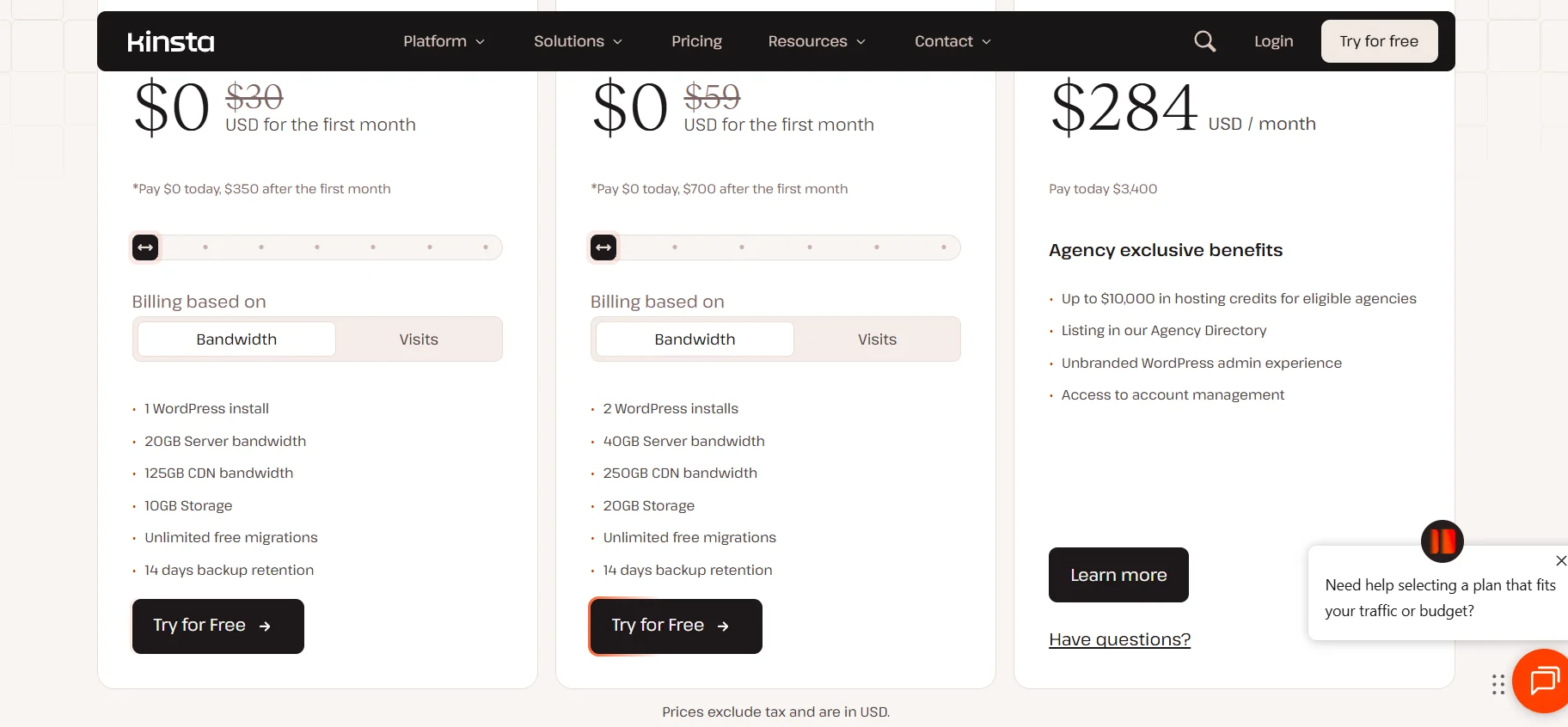
Kinsta’s pricing is straightforward, but it is not cheap. This is premium managed hosting, and the prices reflect that. Here is what each tier actually includes.
Single-Site Plans
These plans are designed for one WordPress installation. They differ primarily in the number of monthly visits, storage, and CDN bandwidth allocated.
| Plan | Monthly Price | Annual Price (per mo) | Visits | Storage | CDN | PHP Workers |
|---|---|---|---|---|---|---|
| Single 35k | $35 | $29.17 | 35,000 | 10 GB | 125 GB | 2 |
| Single 65k | $50 | $41.67 | 65,000 | 10 GB | 250 GB | 4 |
| Single 125k | $90 | $75.00 | 125,000 | 10 GB | 500 GB | 6 |
| Single 315k | $140 | $116.67 | 315,000 | 20 GB | 750 GB | 8 |
| Single 500k | $180 | $150.00 | 500,000 | 30 GB | 1,000 GB | 10 |
Multi-Site Plans
If you manage multiple WordPress installations, these plans offer better value per site.
| Plan | Monthly Price | Sites | Visits | Storage | CDN |
|---|---|---|---|---|---|
| WP 2 | $70 | 2 | 50,000 | 20 GB | 250 GB |
| WP 5 | $115 | 5 | 100,000 | 30 GB | 500 GB |
| WP 10 | $225 | 10 | 250,000 | 50 GB | 1,000 GB |
| WP 20 | $340 | 20 | 400,000 | 60 GB | 1,200 GB |
| WP 40 | $450 | 40 | 600,000 | 80 GB | 1,600 GB |
Enterprise Plans
Enterprise plans scale up to 150 sites and 3 million monthly visits, with prices reaching $1,650/month. These come with dedicated account management and priority support.
What Happens If You Go Over Your Limits?
Kinsta does not shut your site down if you exceed your plan limits. Instead, they charge overages:
- Visits: $0.50 per additional 1,000 visits
- Disk Space: $2 per additional GB per month
- CDN Bandwidth: $0.05 per additional GB
This is actually a reasonable approach. It means a sudden traffic spike from a viral post won’t take your site offline — you just pay a little extra that month. Some competitors handle this less gracefully by throttling performance or suspending accounts.
Annual Billing Discount
Paying annually saves you roughly two months of fees compared to monthly billing. For the Single 35k plan, that brings the effective monthly cost down from $35 to about $29.17. If you are committed to Kinsta, the annual option is a no-brainer.
How to Sign Up and Create Your First Site on Kinsta
The onboarding process is one of the smoothest in the industry. Here is exactly what happens, step by step.
Step 1: Create Your Kinsta Account
Head to kinsta.com, pick your plan, and create your account. You can sign up with your email address or directly through your Google account. Kinsta occasionally offers the first month free on select plans — check their pricing page for current promotions.
Step 2: Access the MyKinsta Dashboard
Once your account is active, you land in MyKinsta — Kinsta’s custom-built management dashboard. This is where everything happens. It replaces both cPanel and any server management tool you might have used before. The interface is clean, fast, and genuinely well-designed. No bloat, no unnecessary complexity.
Step 3: Add a New WordPress Site
Navigate to Sites → Add Site → Create New Site. You will see three options:
- Install WordPress — Kinsta installs the latest version automatically
- Install WordPress Multisite — for running a network of sites under one installation
- Don’t install WordPress — if you plan to migrate an existing site or use a custom setup
Step 4: Configure Your Site Details
You will fill in your site name (used internally in MyKinsta and for your temporary URL), your WordPress admin email, username, and password. You also select your preferred data center location at this point — choose the one closest to your target audience.
Step 5: Your Site Is Live
Within minutes, your site is live on a temporary Kinsta URL (e.g., sitename.kinsta.cloud). You can immediately access the WordPress admin panel, install themes and plugins, and start building. When you are ready to go live, you connect your custom domain and point your DNS to Kinsta.
Migrating an Existing Site to Kinsta
If you already have a WordPress site hosted elsewhere, Kinsta offers unlimited free migrations — and they handle the entire process for you.
Here is how it works: from MyKinsta, you submit a migration request providing your current hosting details (login credentials, hosting panel URL, etc.). Kinsta’s migration team creates a complete copy of your site on their infrastructure. Your original site stays live during the entire process — there is zero downtime.
Once the migration is complete, you receive a notification to test everything on the temporary Kinsta URL. Only after you confirm that everything works do you update your DNS records to point to Kinsta. The switch is seamless.
For urgent migrations, Kinsta offers an expedited service for $49 per site, with a goal of completing the transfer within 8 hours during business days.
Pro tip: You can also migrate manually using the Migrate Guru plugin (free and integrated with Kinsta) or via SFTP if you prefer full control over the process.
The MyKinsta Dashboard: Everything You Manage From One Place
MyKinsta is genuinely one of the best hosting dashboards in the industry. I have used cPanel, Plesk, and various custom panels over the years, and MyKinsta is in a different league in terms of usability and speed.
Here is what you can do from MyKinsta:
| Feature | What It Does |
|---|---|
| Site Management | View all sites, access WordPress admin, manage domains and SSL |
| Analytics | Real-time traffic, bandwidth, response times, cache hit ratios, top pages |
| Backups | View, create, restore, and download daily automatic backups |
| Tools | Clear cache, restart PHP, enable/disable search indexing, change PHP version |
| CDN | Enable/disable Kinsta CDN, purge CDN cache, configure image optimization |
| Domains | Add custom domains, manage DNS, configure SSL certificates |
| SFTP/SSH | Access credentials for secure file transfer and command-line access |
| Redirects | Create 301/302 redirects directly from the dashboard (no plugin needed) |
| Logs | Access error logs, access logs, and PHP error logs for debugging |
| User Management | Add team members with role-based access (company-level or site-level) |
The analytics section alone is worth highlighting. Most hosting providers give you basic bandwidth stats and call it a day. Kinsta shows you response time breakdowns by geography, cache performance ratios, top requests, 404 errors, and bandwidth usage by resource type. This is the kind of data that helps you actually optimize your site, not just monitor it.
Performance and Speed: What to Actually Expect
Let me be specific about performance, because vague claims like “blazing fast” are meaningless.
In independent benchmark tests, Kinsta-hosted sites consistently achieve average response times around 135ms in the United States. That is among the fastest in the managed WordPress hosting space. The combination of Google Cloud’s C3D machines, server-level caching, and Cloudflare Enterprise integration creates a stack that is genuinely hard to beat.
Server-Level Caching
Kinsta handles caching at the server level using a custom Nginx configuration. You do not need to install caching plugins like WP Super Cache or W3 Total Cache — in fact, Kinsta blocks most caching plugins because they conflict with the built-in system. This is actually a good thing. Server-level caching is faster and more reliable than plugin-based caching, and it eliminates an entire category of configuration headaches.
Cloudflare Enterprise Integration
Every Kinsta plan includes Cloudflare Enterprise features at no additional cost. This means:
- Enterprise-grade DDoS protection (automatic, always-on)
- HTTP/3 support (faster connection establishment)
- Wildcard SSL certificates (covers all subdomains automatically)
- Image optimization (automatic WebP conversion for faster loading)
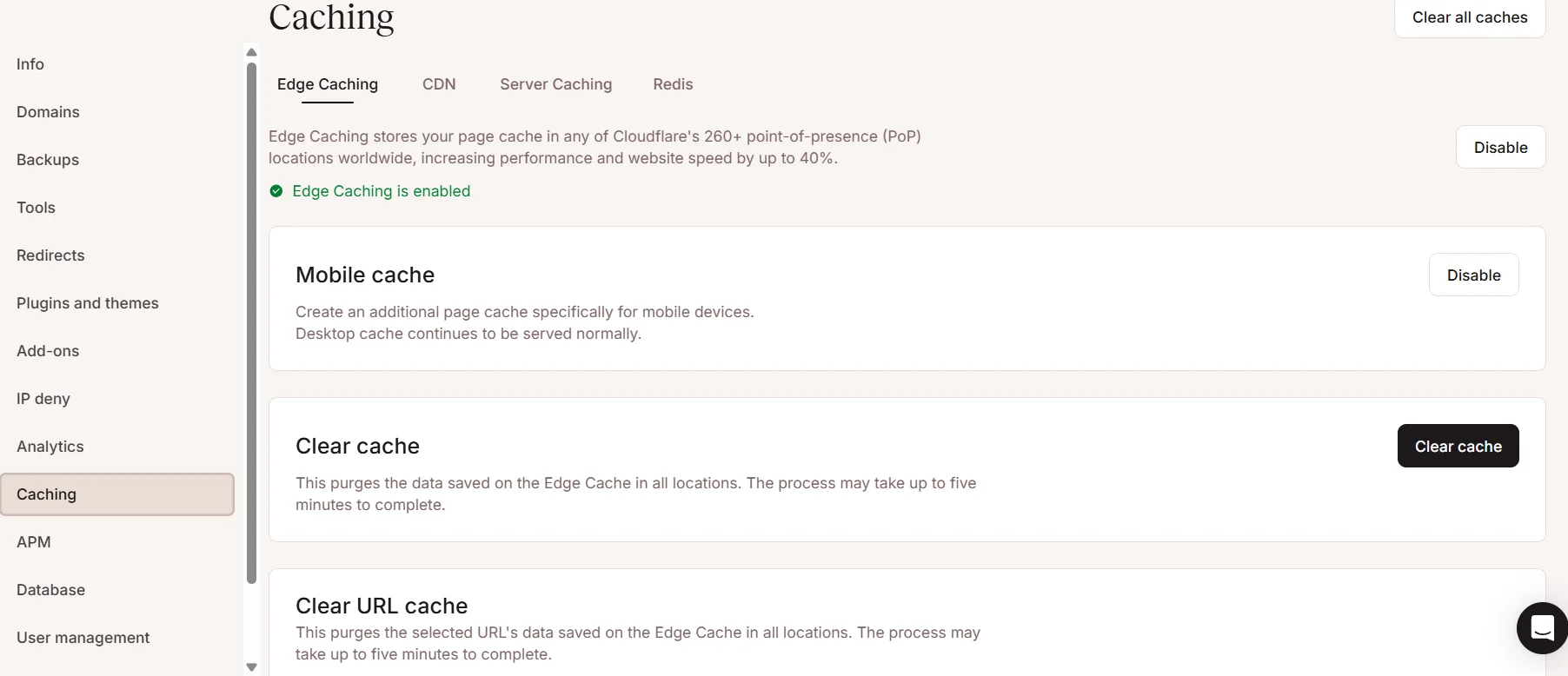
- Edge caching (content served from 260+ global locations)
The edge caching feature deserves special attention. Traditional hosting serves every request from the origin server. Kinsta’s edge caching stores your cached pages at Cloudflare’s 260+ Points of Presence worldwide, so a visitor in Tokyo gets served from a nearby edge node rather than waiting for a round trip to your origin server in, say, Iowa. In Kinsta’s tests, enabling the CDN reduced page load times by up to 44%.
PHP Workers (Threads)
PHP workers determine how many simultaneous requests your site can handle. Each worker processes one request at a time. Kinsta allocates between 2 and 16+ PHP workers depending on your plan. For most content sites, 2-4 workers are sufficient. WooCommerce stores and membership sites with logged-in users typically need more because dynamic (uncached) requests require a PHP worker for each concurrent visitor.
Security Infrastructure
Security is one of the areas where Kinsta’s managed approach truly earns its price tag.
Container Isolation
Every WordPress site on Kinsta runs in its own isolated software container. This means that even if another site on the same physical server gets compromised, your site remains completely unaffected. This level of isolation is standard in enterprise environments but rare in the WordPress hosting world.
What Kinsta Handles Automatically
| Security Layer | Details |
|---|---|
| DDoS Protection | Cloudflare Enterprise-grade, always active |
| Web Application Firewall | Cloudflare WAF with WordPress-specific rules |
| Hardware Firewalls | Two layers — Google Cloud + Cloudflare |
| SSL Certificates | Free wildcard SSL via Cloudflare, auto-renewed |
| Malware Scanning | Automated daily scans of all files |
| Brute Force Protection | Automatic IP blocking after failed login attempts |
| Two-Factor Authentication | Mandatory 2FA for MyKinsta dashboard access |
| Uptime Monitoring | Checks every 3 minutes, 480 checks per day |
| Automatic Updates | WordPress core updates applied automatically |
Hack Recovery Guarantee
This is one of Kinsta’s strongest selling points: if your WordPress site gets hacked while hosted on Kinsta, their security team will clean it up and restore it at no extra charge. No hidden fees, no upsells to a “security package.” It is included in every plan. For anyone who has ever dealt with a hacked WordPress site — and the $200-500 cleanup bills that usually follow — this guarantee alone can justify a year of Kinsta hosting.
Compliance
Kinsta holds SOC 2 Type II and ISO 27001 certifications, which means their security practices have been independently audited and verified. This matters if you handle sensitive customer data, run an e-commerce store, or work with enterprise clients who require documented security compliance from their vendors.
Developer Tools and Workflow Features
Kinsta is not just for non-technical users. The platform offers a genuinely developer-friendly environment.
Staging Environments
Every WordPress installation on Kinsta gets a free staging environment — a complete copy of your live site where you can test updates, new plugins, theme changes, or code modifications without any risk to your production site.
What makes Kinsta’s staging particularly useful is the Selective Push feature. Instead of pushing the entire staging site to production (which can overwrite recent content changes), you can choose to push only files, only the database, or both. This granular control prevents the common problem of accidentally overwriting a blog post that was published while you were working in staging.
DevKinsta: Free Local Development
DevKinsta is Kinsta’s free local development tool, used by over 60,000 developers. It runs on Docker and lets you spin up a full WordPress environment on your local machine in minutes — complete with Nginx, MariaDB, and PHP.
The killer feature: one-click sync with your Kinsta hosting. Pull your live site down to your local machine, make changes, and push them back to Kinsta’s staging environment. No manual file transfers, no database exports. It just works.
SSH, WP-CLI, and Git
Every Kinsta site comes with SSH access and WP-CLI pre-installed. You can manage WordPress from the command line, run database queries, install plugins in bulk, or automate maintenance tasks. Git is also available for version-controlled deployments.
PHP Version Management
Switching PHP versions on Kinsta takes one click in the MyKinsta dashboard. Kinsta supports the latest PHP versions and typically adds support for new releases within weeks of their stable launch. You can also configure custom php.ini settings, adjust memory limits, and fine-tune PHP-FPM pools.
Kinsta API
Kinsta offers a REST API that lets you programmatically manage sites, create new WordPress installations, check site status, clear caches, and more. This is particularly valuable for agencies that need to automate site provisioning for clients or integrate Kinsta management into their existing workflows.
Backup System
Kinsta handles backups automatically. Every site gets daily automatic backups with the following retention periods:
| Plan Level | Backup Retention |
|---|---|
| Single-site plans | 14 days |
| Business plans | 20 days |
| Enterprise plans | 30 days |
Beyond automatic daily backups, you can:
- Create manual backups on demand (up to 5 at a time)
- Download complete backups as .zip files for off-site storage
- Set up hourly backups as an add-on ($50/month for 6-hour intervals, $100/month for hourly)
- Restore any backup with a single click — Kinsta automatically creates a pre-restore backup so you can roll back if needed
One thing worth noting: Kinsta backs up your entire WordPress installation — files, database, and all. This is not a partial backup system. When you restore, you get everything back exactly as it was.
Kinsta CDN and Global Content Delivery
Every Kinsta plan includes a built-in CDN powered by Cloudflare, with no configuration required. The CDN is enabled by default on new sites, and it covers static assets (images, CSS, JavaScript) as well as full-page edge caching.
CDN Features at a Glance
- 260+ Points of Presence — content served from the closest location to each visitor
- HTTP/3 support — one of the few CDNs to support the latest protocol
- Image optimization — automatic conversion to WebP format for PNG, JPEG, and GIF files
- Code minification — optional CSS and JavaScript minification directly from MyKinsta
- Early hints — browsers start loading critical resources before the HTML is fully parsed
The CDN bandwidth allocation varies by plan (125 GB to 1,600 GB+ per month). If you exceed your allocation, overages are charged at $0.05 per GB — which is quite reasonable compared to standalone CDN pricing.
What I Genuinely Like After Using Kinsta
I want to be clear about my perspective here: I am actively hosting my WordPress site on Kinsta, and I have been genuinely satisfied with the experience. That said, this is not blind loyalty — I will cover the limitations in the next section.
The things that stand out after real, daily use:
The MyKinsta dashboard is fast. Not “acceptable” fast — actually fast. Pages load instantly, actions execute without delay. After years of sluggish cPanel interfaces, this alone feels like an upgrade.
Support quality is consistently high. I have contacted Kinsta’s support team multiple times, and every interaction has been with someone who actually understands WordPress at a technical level. No scripts, no “have you tried clearing your cache?” as a first response. They dig into the actual issue. Average response time via live chat is under 2 minutes.
Site speed is not something I worry about anymore. Once your site is on Kinsta with their caching and CDN properly configured, performance is essentially a solved problem. My focus shifted entirely to content and functionality, which is exactly how it should be.
Honest Limitations You Should Know About
No hosting provider is perfect, and pretending otherwise would be dishonest. Here are the real limitations:
The price is higher than most alternatives. At $35/month for the entry-level plan, Kinsta costs 5-10x more than basic shared hosting. For sites that don’t generate revenue or receive significant traffic, this premium may not be justified.
Visit-based billing can be unpredictable. Unlike bandwidth-based billing (which is more predictable), visit-based plans mean a bot crawling your site or a referral spam attack can inflate your visit count and trigger overages. Kinsta does filter most bot traffic, but it is not a perfect system.
No email hosting. Kinsta focuses exclusively on WordPress and does not include email hosting. You will need a separate provider like Google Workspace, Microsoft 365, or Zoho Mail. This is not unusual for managed WordPress hosts, but it is an additional cost to factor in.
Plugin restrictions exist. Kinsta blocks certain plugins that conflict with their server-level optimizations — primarily caching plugins and backup plugins that run on the server. The full list is documented in their knowledge base. In practice, the blocked plugins are ones you do not need because Kinsta already handles those functions natively.
Only WordPress is supported. Kinsta’s WordPress hosting is exclusively for WordPress sites. You cannot host a plain HTML site, a Laravel application, or a Drupal installation on these plans. (Kinsta does offer separate Application Hosting and Database Hosting for non-WordPress projects, but those are distinct products.)
How Kinsta Compares to Other Managed WordPress Hosts
| Feature | Kinsta | WP Engine | Cloudways | SiteGround |
|---|---|---|---|---|
| Infrastructure | Google Cloud (C3D) | AWS / Google Cloud | Multiple providers | Google Cloud |
| Starting Price | $35/mo | $20/mo | $14/mo | $2.99/mo |
| Free CDN | Cloudflare Enterprise | Basic CDN | Cloudflare (add-on) | Basic CDN |
| Staging | Yes (with Selective Push) | Yes | Yes | Yes |
| Free Migrations | Unlimited | Limited | Limited | Limited |
| Hack Recovery | Free | Paid add-on | Not included | Not included |
| PHP Workers | 2-16+ | 2-10 | Varies | Varies |
| Support | 24/7 Expert Chat | 24/7 Chat | 24/7 Chat | 24/7 Chat |
| Local Dev Tool | DevKinsta (free) | Local (free) | None | None |
Kinsta is not the cheapest option — it is not trying to be. Its value proposition is performance, reliability, and support quality. If you compare the actual feature set (Cloudflare Enterprise, C3D machines, container isolation, hack recovery), Kinsta offers more included value than most competitors at similar price points.
Getting the Most Out of Your Kinsta Setup
After running multiple sites on Kinsta, here are the practical optimizations that make a real difference:
Choose your data center wisely. Pick the location closest to where most of your visitors are — not where you live. Use Google Analytics geographic data to make this decision. For a U.S.-focused site, Iowa (us-central1) or South Carolina (us-east1) are strong defaults.
Enable Kinsta CDN and edge caching immediately. Both are available in MyKinsta under the CDN tab. Edge caching alone can cut your global load times by 30-40%.
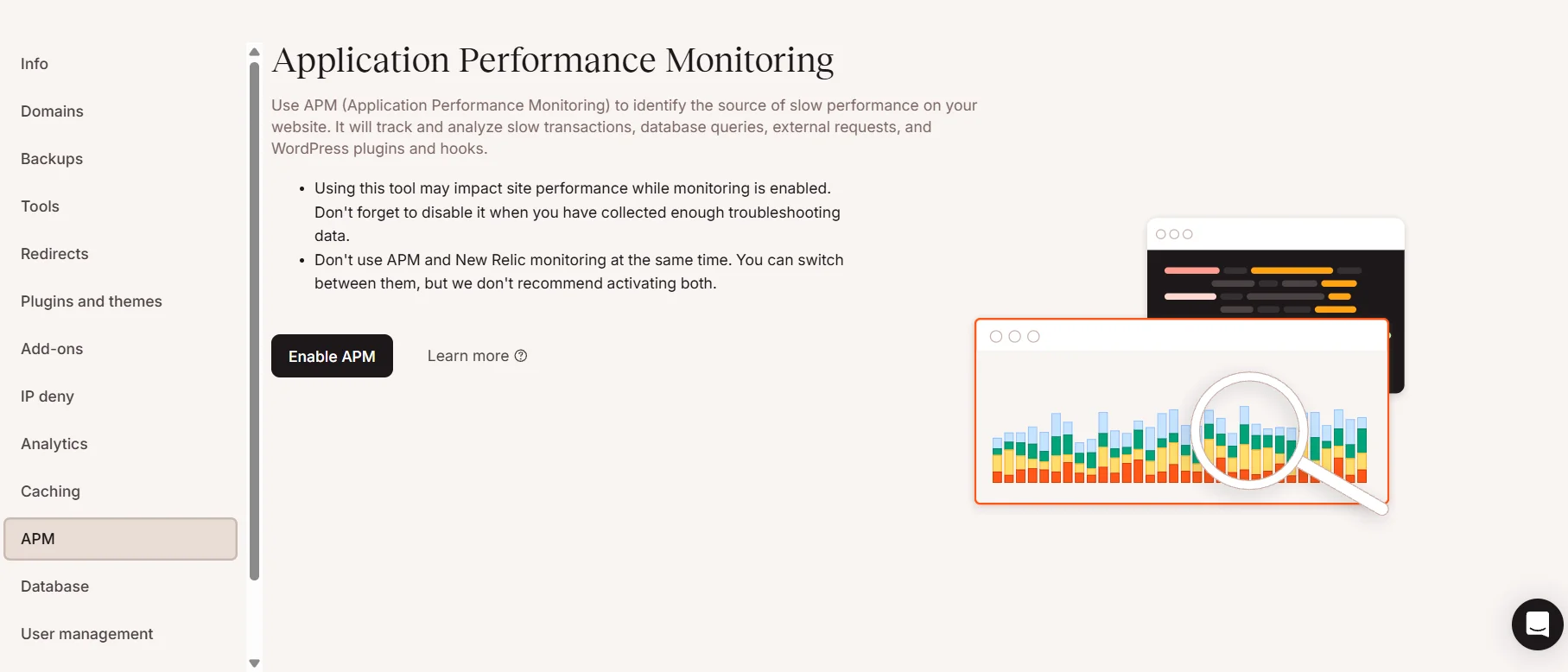
Use the built-in APM tool. Kinsta includes an Application Performance Monitoring tool that identifies slow plugins, database queries, and external API calls. Run it periodically to catch performance bottlenecks before they become problems.
Take advantage of staging before every major update. Before updating WordPress core, your theme, or critical plugins, push your live site to staging, apply updates there, and test thoroughly. This takes five minutes and can save you hours of troubleshooting.
Set up redirect rules in MyKinsta instead of using plugins. Server-level redirects are faster and more reliable than plugin-based redirects, and Kinsta’s redirect tool supports both regex and simple path-based rules.
Available Add-Ons
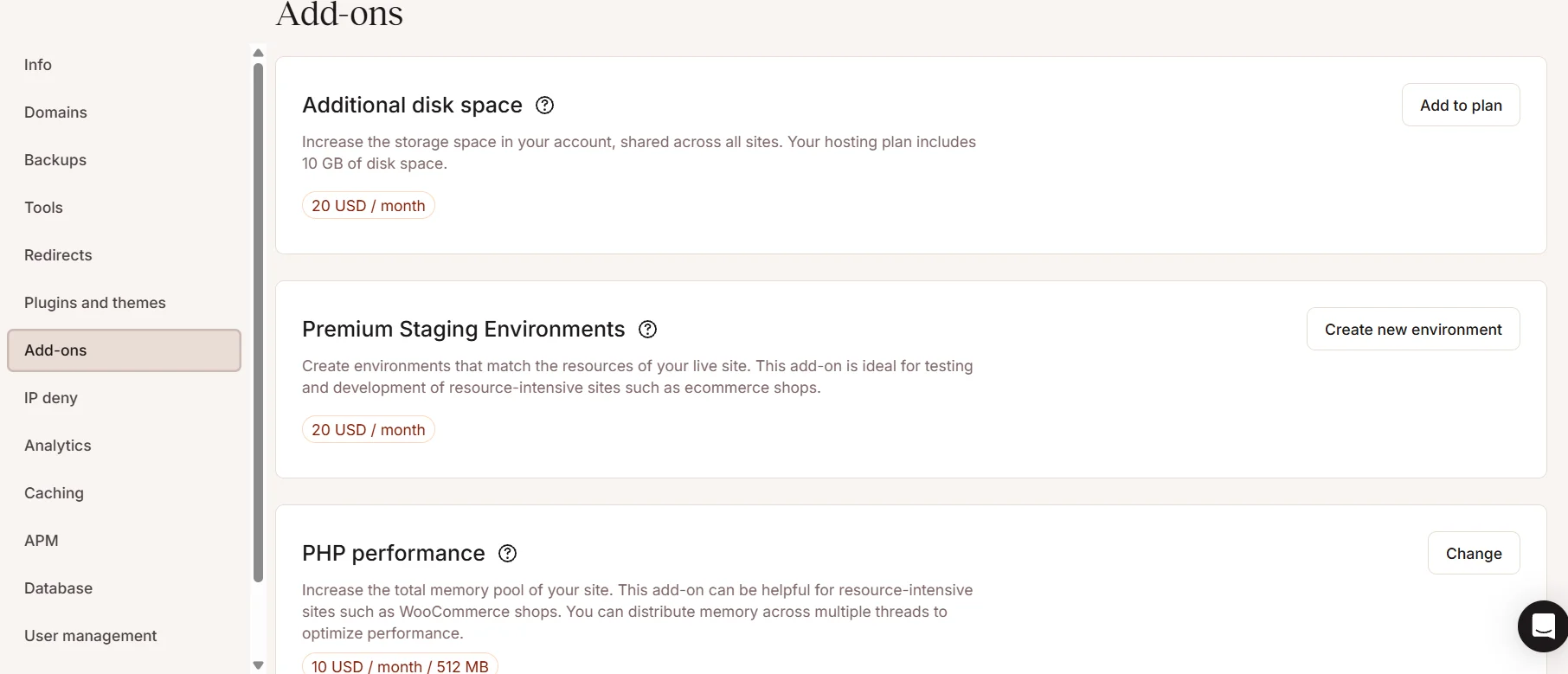
Kinsta offers several add-ons for sites that need resources beyond their plan limits:
| Add-On | Price | Details |
|---|---|---|
| Extra Disk Space | $2/GB/month | Added to your plan’s base storage |
| Nginx Reverse Proxy | $50/month per site | For advanced configurations |
| Redis Caching | $100/month per site | Object caching for dynamic sites |
| Hourly Backups (6-hour) | $50/month per site | More frequent backup intervals |
| Hourly Backups (hourly) | $100/month per site | Maximum backup frequency |
| Extra WordPress Sites | $20/month per site | Add more sites to any plan |
The Redis add-on is particularly valuable for WooCommerce stores and membership sites. It caches database query results in memory, dramatically reducing response times for logged-in users and dynamic pages that bypass the standard page cache.
Final Verdict: Is Kinsta Worth It?
After using Kinsta myself for my WordPress projects, my answer is yes — with a qualification.
Kinsta is worth it if your WordPress site is important to your business or income. The combination of Google Cloud’s infrastructure, Cloudflare Enterprise, expert support, and a dashboard that actually makes hosting management enjoyable is hard to find elsewhere. The peace of mind that comes from knowing your site is secure, automatically backed up, and running on cutting-edge hardware has genuine value.
Kinsta may not be your first choice if you are running a small personal project with minimal traffic and no revenue. The $35/month starting price is premium, and there are more budget-friendly options for less demanding use cases.
What ultimately makes Kinsta stand out is not any single feature — it is the consistency of the entire experience. Everything works well, support is knowledgeable, and you never feel like you are fighting your hosting provider. In the WordPress hosting space, that kind of reliability is rarer than it should be.
Related Reading
If you found this guide helpful, you might also want to explore these related articles:
- Blog Traffic Not Growing? Here’s How to Find Out Why — Understanding why your WordPress site might not be reaching its traffic potential
- Fix Blog Structure Problems Step by Step — A practical guide to organizing your site architecture for better performance and user experience
- My AI Tool Selection Framework That Actually Holds Up in 2026 — How to evaluate and choose the right tools for your workflow
- Digital Art for Beginners Without Overwhelm: A Simple Way to Start — If you’re building a creative portfolio on WordPress
- Building Digital Order — Practical strategies for organizing your digital workspace and workflow